XML Format
Purpose
Define an XML data format based on an XSD schema. The XSD schema is parsed to extract type information, and each schema type is mapped to a corresponding entry in the layline.io Data Dictionary.
Formats defined this way may be used to both read and write XML data. The format can be attached to:
The editor enables you to:
- Select an XSD schema file from the project (see XSD Schema below).
- Override namespace and naming settings per schema element (see Schema setup below).
- Configure how XML elements map to layline.io messages (see Message Creation below).
- Apply pre-defined converters to transform data during parsing/serialization (see Converters below).
- Test the format with sample XML data in edit mode.
Configuration
Name & Description
-
Name: Name of the Asset. Spaces are not allowed in the name. -
Description: Enter a description.
The Asset Usage box shows how many times this Asset is used and which parts are referencing it.
Click to expand and then click to follow, if any.
XSD Schema
XSD Schema: Select the XSD schema file from the project.
XSD schema files are managed as regular source files in the project. To add an XSD schema to your project:
- Go to the Sources tab of your project.
- Add a new Script source file with the
.xsdextension. - Paste or upload your XSD schema content into the file.
- The schema will then appear in the
XSD Schemadropdown in this editor.
Once selected, the schema is parsed to extract type information and populate the Schema setup table.
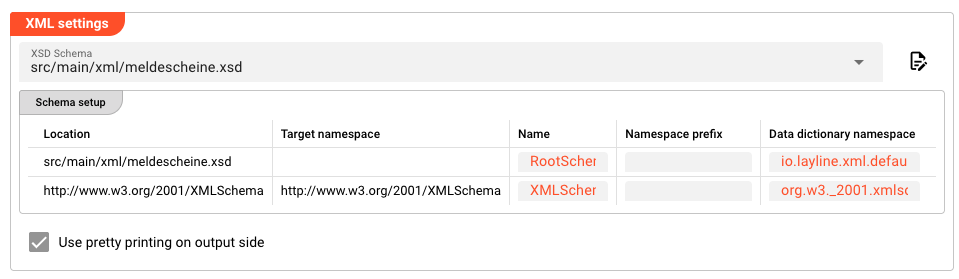
Schema setup
The Schema setup table lists all schema types discovered in the XSD. For each schema location, you can override how it is mapped into layline.io.
| Column | Description |
|---|---|
| Location | Schema location identifier (read-only). Determined by the XSD file path. |
| Target Namespace | The target namespace of this schema (read-only). Set by the XSD. |
| Name | Override the display name used for this schema in layline.io. Leave empty to use the default from the schema. |
| Namespace Prefix | Override the XML namespace prefix used when serializing. Leave empty to use the default. |
| Data Dictionary Namespace | Override the Data Dictionary namespace for types from this schema. Leave empty to use the default. |
The table is populated automatically from the selected XSD. Only rows where you have explicitly added an override are persisted — empty rows are informational only.
Click Add Schema Override to add an override entry for a specific schema location.
Use pretty printing on output side
Use pretty printing on output side: When enabled, XML output is formatted with indentation and line breaks for readability. When disabled, XML is output as a single line. This applies only on the output side.
Message Creation
Message Creation defines how XML elements from the schema map to layline.io message structures. Each entry connects a schema context to an internal message path.
| Column | Description |
|---|---|
| Context | The XML element or type name from the XSD schema (e.g., RootSchema.meldeschein). |
| Element path | The path in the layline.io message structure where this element's data will be accessible (e.g., Detail.Meldeschein). |
Click Add Message Creation Data to add a new mapping entry.

Converters
Converters transform data during XML parsing and serialization. They are applied to specific XML elements or types defined in the schema.
Converters are pre-defined conversion types (not custom scripts). For example:
HexConverter— converts hexadecimal string representation to binary and vice versaBCDConverter— converts Binary-Coded Decimal representation to binary and vice versa
| Column | Description |
|---|---|
| Context | The XML element or type name from the XSD schema to which this converter applies (e.g., RootSchema.meldeschein.buchungsnummer). |
| Definition | The converter type. Select from the list of available pre-defined converters. |
Click Add Converter to add a new converter entry.

For more on using formats in processors, see Stream Input and Frame Input.
Please note, that the creation of the online documentation is Work-In-Progress. It is constantly being updated. should you have questions or suggestions, please don't hesitate to contact us at support [at] layline.io .