Shelf
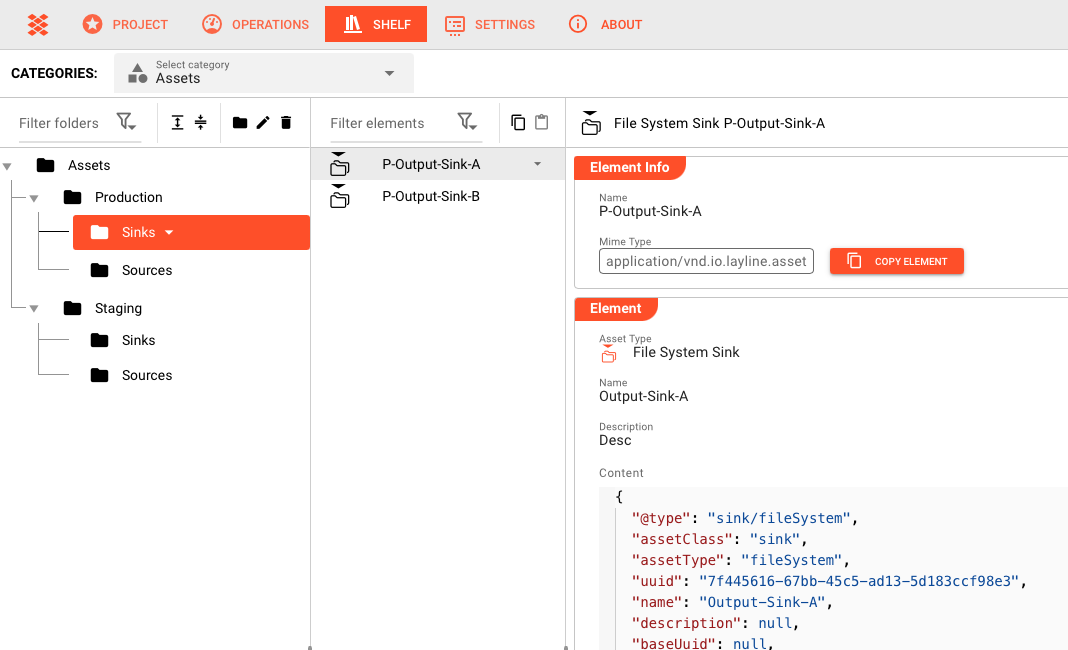
The Shelf is a shared library where reusable Assets and Messages live. Copy an Asset to the Shelf, then paste it into any Project.
What Is the Shelf?
The Shelf provides a central place to store copies of Assets and Messages for later reuse within the same Project or across different Projects. Instead of recreating the same configuration, you copy it to the Shelf once and paste it wherever it's needed.
How It Works
The Shelf works through copy and paste using the application's internal clipboard:
- Copy to Shelf — Select an Asset or Message in your Project, copy it, then paste it into a Shelf folder
- Copy from Shelf — Select an Element in the Shelf, copy it, then paste it into your Project
- Cross-project — Close one Project, open another, and paste the copied Element
This allows you to temporarily or permanently park specific Asset setups or Messages of interest.
Shelf Structure
The Shelf is organized hierarchically:
Shelf
├── Categories
│   ├── Folders
│   │   └── Elements (Assets or Messages)
Categories
Categories are the top-level groupings. There are two built-in categories:
- Assets — Reusable Asset configurations (Connections, Services, Formats, etc.)
- Messages — Data format definitions and message schemas
See Categories for details.
Folders
Folders exist within Categories and help you organize Elements. You might organize folders by:
- Environment (Production, Staging, Development)
- Project or application name
- Asset type or domain
See Folders for details on folder management.
Elements
Elements are individual Assets or Messages stored on the Shelf. An Element contains the complete configuration of the copied Asset or Message.
See Elements for details on working with Elements.
Key Workflows
Copying an Asset to the Shelf
- Open the Asset in your Project's Asset Editor
- Select the Asset and copy it (using the application's copy function)
- Navigate to the Shelf
- Select or create a Folder
- Paste the Asset into the Folder
The Asset is now stored on the Shelf and available for reuse.
Using a Shelf Asset in a Project
- Navigate to the Shelf and find the Asset you need
- Copy the Asset from the Shelf
- Open your Project and go to the Asset Editor
- Paste the Asset into the Asset tree
The Asset is now available in your Project as a local copy.
Using a Shelf Message
Messages are generic runtime structures created by layline.io at runtime. You can copy them to the Shelf from the audit trail or service function execution results, then paste them wherever message pasting is supported:
- Copy a Message from the Shelf
- Navigate to where you want to use it (e.g., Engine State → Service Asset Functions)
- Paste the Message into the appropriate field
Important: Dependencies
Assets may depend on other Assets. When you copy an Asset to the Shelf, only that specific Asset is copied — not its dependencies.
For example, if you copy an Input Stream Processor that references a Format:
- Only the Input Stream Processor is stored on the Shelf
- The Format it references is not automatically included
When you paste this Asset into another Project:
- The pasted Asset will still reference the original Format
- If that Format doesn't exist in the target Project, the Asset will fail
Best Practice
Before copying an Asset to the Shelf, check its dependencies. If you're moving it to a different Project, ensure those dependencies exist there or copy them to the Shelf as well.
When to Use the Shelf
Use the Shelf when:
- You want to reuse an Asset configuration in another Project
- You need to temporarily park a specific Asset setup for later investigation
- You want to save a Message for testing or debugging purposes
- You need to standardize configurations across Projects
Don't use the Shelf when:
- An Asset is truly Project-specific with no reuse potential
- The Asset has complex dependencies that won't exist in target Projects
Navigating the Shelf
The Shelf interface provides multiple ways to find content:
- Browse — Navigate the Category → Folder → Element hierarchy
- Search — Find Elements by name
- Recent — Quickly access recently viewed Elements
See Navigation for detailed guidance.
Permissions
| Action | Requirements |
|---|---|
| View Shelf | Any authenticated user |
| Copy from Shelf | Any authenticated user |
| Paste to Shelf | Project Editor or higher |
| Manage Folders | Shelf Admin |
| Delete Elements | Shelf Admin |
Best Practices
- Organize by function — Use clear Category and Folder names that reflect what the Elements do
- Use descriptive names — Element names should clearly indicate purpose
- Document with descriptions — Add descriptions to folders and elements when possible
- Check dependencies — Before copying an Asset, verify its dependencies exist in target Projects
- Clean up periodically — Remove outdated Elements to keep the Shelf manageable
See Also
- Categories — Organizing Assets into Categories
- Folders — Creating and managing Folders
- Elements — Working with Shelf Elements
- Navigation — Finding and using Shelf content
- Project — Where Assets are used
- Assets Overview — Reference documentation for all Asset types