Create New Project
Start a fresh, empty project on the file system and register it with the Configuration Center in one step.
Use Create New Project when you want to start building a new data pipeline from scratch. layline.io creates a new project folder at the path you specify and immediately opens the project editor.
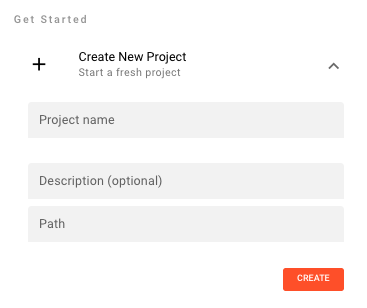
Steps
- In the Project tab, expand the Create New Project panel on the right side.
- Enter a Project name — this is the internal identifier for the project and becomes the folder name on disk. Required.
- Optionally enter a Description — a short description of what this project does.
- Enter a Path — the full file system path where the project folder will be created. Required.
- Click Create.
layline.io creates the folder, initialises the project structure inside it, and opens the project editor automatically.
If you want a friendlier label in the UI, set a display name from the Project Hub after creation — select the project in the All Projects list and use the Display Name field that appears below it.
Error handling
If the path is invalid, the folder already exists, or the server cannot write to the specified location, an error banner appears below the form. Correct the path and click Try Again to retry.
Common failure causes:
- The path contains non-existent parent directories
- A folder with the same name already exists at the given path
- Insufficient file system permissions at the target location
See Also
- Add Existing Project — Register an existing project folder instead of creating a new one
- Import from Archive — Restore a project from a ZIP archive
- Project Hub — Overview of the Project tab