Source Google Cloud Storage
Purpose
Polls one or more Google Cloud Storage (GCS) buckets for objects and makes them available to downstream processors. Authentication is handled via a Google Cloud Connection using OAuth 2.0. Objects can be filtered by prefix, suffix, and regular expression patterns. Housekeeping rules can be configured to automatically delete processed objects after a configurable age threshold.
This Asset can be used by:
| Asset type | Link |
|---|---|
| Input Processors | Stream Input Processor |
Prerequisites
You need:
- A Google Cloud Connection with a valid OAuth client configured
- A GCS bucket reachable from the Google Cloud project referenced by the connection
Configuration
Name & Description
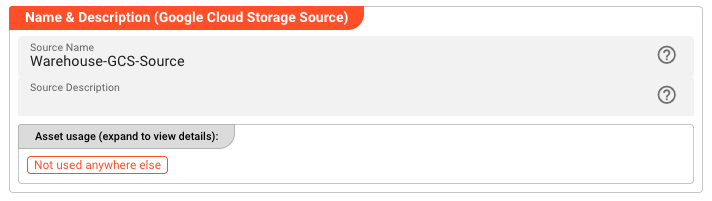
Name — Unique name for this asset within the project. Spaces are not allowed.
Description — Optional description of what this source is used for.
Asset Usage — Shows how many times this asset is referenced by other assets, workflows, or deployments. Expand to see the full list.
Required Roles

In case you are deploying to a Cluster with Reactive Engine Nodes that have specific Roles configured, you can restrict use of this Asset to Nodes with matching roles. Leave empty to match all Nodes.
Throttling & Failure Handling
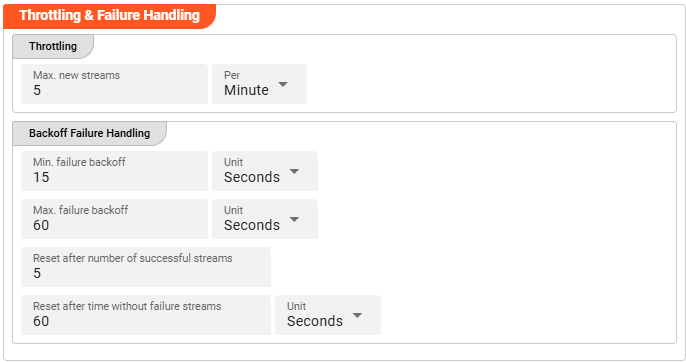
Throttling
These parameters control the maximum number of new stream creations per given time period.
Max. new streams — Maximum number of streams this source is allowed to open or process within the given time period.
Per — Time interval unit for the Max. new streams value.
Configuration values for this parameter depend on the use case scenario. Assuming your data arrives in low frequency cycles, these values are negligible. In scenarios with many objects arriving in short time frames, it is recommended to review and adapt the default values accordingly.
Backoff Failure Handling
These parameters define backoff timing intervals in case of failures. The system will progressively throttle down the processing cycle based on the configured minimum and maximum failure backoff boundaries.
Min. failure backoff — The minimum backoff time before retrying after a failure.
Unit — Time unit for the minimum backoff value.
Max. failure backoff — The maximum backoff time before retrying after a failure.
Unit — Time unit for the maximum backoff value.
Based on these values, the next processing attempt is delayed: starting at the minimum failure backoff interval, the wait time increases step by step up to the maximum failure backoff.
Reset after number of successful streams — Resets the failure backoff throttling after this many successful stream processing attempts.
Reset after time without failure streams — Resets the failure backoff throttling after this amount of time passes without any failures.
Unit — Time unit for the time-based backoff reset.
Whatever comes first — the stream count or the time threshold — resets the failure throttling after the system returns to successful stream processing.
Polling & Processing
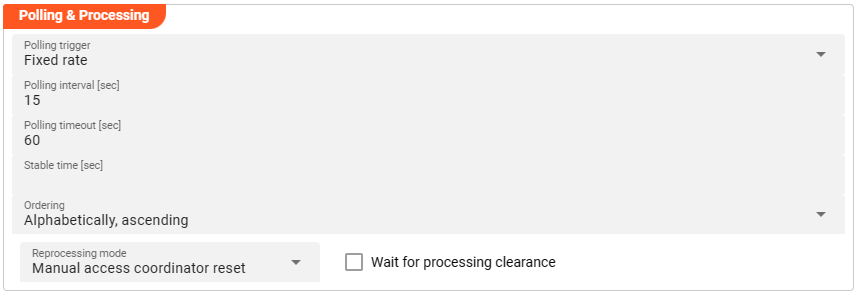
This source does not reflect a stream, but an object-based storage source which does not signal the existence of new objects to observers. We therefore need to define how often we want to look up (poll) the source for new objects to process.
You can choose between Fixed rate polling and Cron tab style polling.
Fixed rate
Use Fixed rate if you want to poll at constant and frequent intervals.
Polling interval [sec] — The interval in seconds at which the configured source is queried for new objects.
Cron tab

Use Cron tab if you want to poll at specific scheduled times. The Cron tab expression follows the cron tab style convention. Learn more about crontab syntax at the Quartz Scheduler documentation.
You can also use the built-in Cron expression editor — click the calendar symbol on the right hand side:
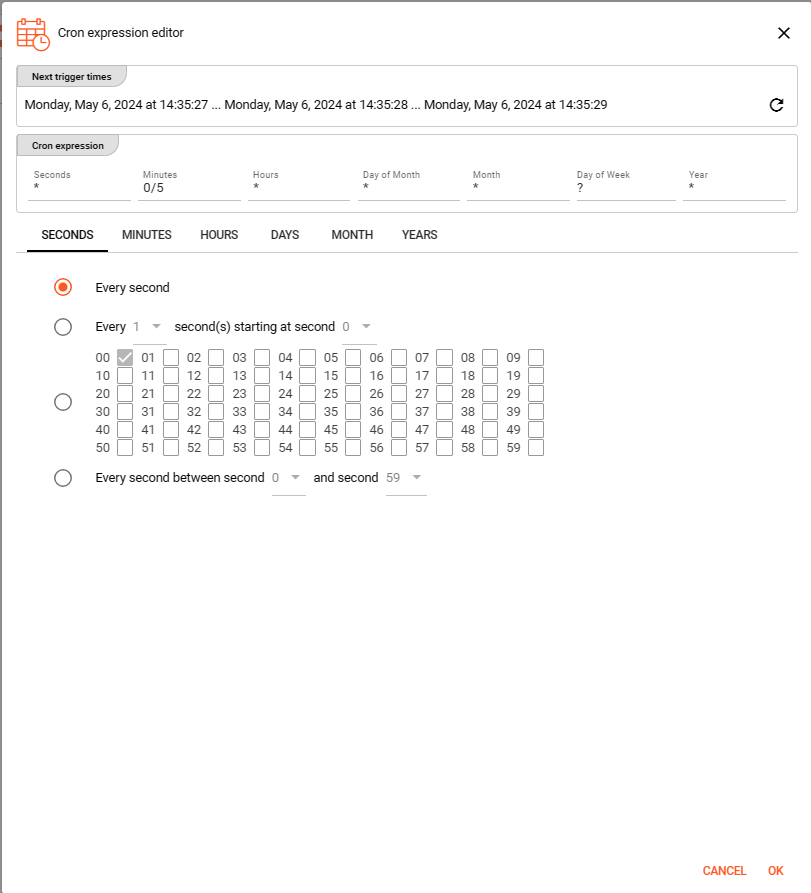
Configure your expression using the editor. The Next trigger times display at the top helps you visualize when the next triggers will fire. Press OK to store the values.
Polling timeout
Polling timeout [sec] — The time in seconds to wait before a polling request is considered failed. Set this high enough to account for endpoint responsiveness under normal operation.
Stable time
Stable time [sec] — The number of seconds that file statistics must remain unchanged before the file is considered stable for processing. Configuring this value enables stability checks before processing.
Ordering
When listing objects from the source for processing, you can define the order in which they are processed:
- Alphabetically, ascending
- Alphabetically, descending
- Last modified, ascending
- Last modified, descending
Reprocessing mode
The Reprocessing mode setting controls how layline.io's Access Coordinator handles previously processed sources that are re-ingested.
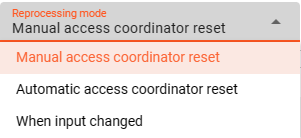
- Manual access coordinator reset — Any source element processed and stored in layline.io's history requires a manual reset in the Sources Coordinator before reprocessing occurs (default mode).
- Automatic access coordinator reset — Allows automatic reprocessing of already processed and re-ingested sources as soon as the respective input source has been moved into the configured done or error directory.
- When input changed — Behaves like
Manual access coordinator reset, but also checks whether the source has potentially changed — i.e., the name is identical but the content differs. If the content has changed, reprocessing starts without manual intervention.
Wait for processing clearance
When Wait for processing clearance is activated, new input sources remain unprocessed in the input directory until either:
- A manual clearance is given through Operations, or
- A JavaScript processor executes
AccessCoordinator.giveClearance(source, stream, timeout?)
Input Buckets
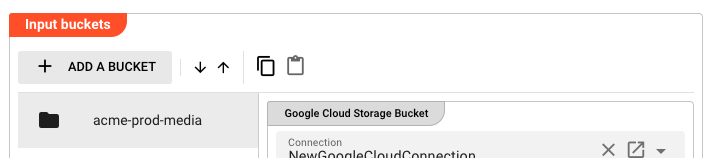
The Input Buckets section defines which GCS buckets to poll and how to filter the objects within them.
Click "+ ADD A BUCKET" to add a new bucket entry. Use the toolbar to reorder, copy, or paste bucket entries.
Bucket Entry Fields
Connection — Select the Google Cloud Connection to use for accessing this bucket. The dropdown shows only valid Google Cloud Connection assets.

Project Id — The Google Cloud project ID that owns the target bucket.
Bucket name — The name of the GCS bucket to poll.
Folder prefix — An optional object key prefix to narrow down the scope within the bucket (e.g., media/). Only objects whose keys start with this prefix are considered.

Object regular expression — A regular expression applied to the full object key to determine whether an object should be processed (e.g., \S+\.csv matches any key ending in .csv).
Object prefix regular expression — A regular expression filter applied to the beginning of the object key. Optional.
Object suffix regular expression — A regular expression filter applied to the end of the object key (e.g., \.csv). Optional.
Include sub folders — When enabled, objects under sub-prefixes within the bucket/folder prefix scope are also considered for processing. Default: disabled.
Housekeeping
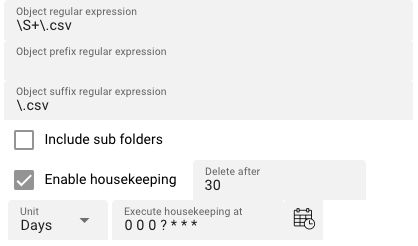
Enable housekeeping — When enabled, objects that have been fully processed are automatically deleted after a configurable age threshold.
Delete after — Age threshold for housekeeping deletion. Objects older than this value are deleted.
Unit — Time unit for the Delete after threshold: Minutes, Hours, or Days.
Execute housekeeping at — A cron expression defining when housekeeping runs (e.g., 0 0 0 ? * * * runs daily at midnight). Click the calendar icon to open the cron expression editor.
Enable / Disable Bucket
Each bucket entry can be individually enabled or disabled, or controlled via a string expression. Select Enabled or Disabled from the dropdown, or choose "Set via string expression" to use a dynamic expression.
Behavior
The Source polls each configured bucket at the interval defined in Polling & Processing. Objects that match all applicable filters (prefix, suffix, regex) and are in the ENABLED state are queued for processing.
When an object is fully processed by the downstream workflow, the housekeeping rules determine whether it is deleted or retained. If housekeeping is disabled, objects remain in the bucket indefinitely.
The Access Coordinator tracks which objects have been processed to prevent duplicate processing on reprocessing runs. See Reprocessing mode in Polling & Processing for the available modes.
See Also
- Google Cloud Connection — OAuth configuration for GCS access
- GCS Sink — Write objects to Google Cloud Storage
- VFS Source — Read files from a Virtual File System mount
Please note, that the creation of the online documentation is Work-In-Progress. It is constantly being updated. should you have questions or suggestions, please don't hesitate to contact us at support [at] layline.io .