Deployment Storage
Manage and assign deployments to Reactive Engine nodes in a live cluster.
Purpose
Deployment Storage is the central hub for managing which deployments are active on your cluster and how they are distributed across Reactive Engine nodes. It provides a real-time view of deployment assignments, allows uploading new deployments, and lets you configure assignment rules that determine which deployment each node runs.
The Deployment Storage interface is divided into two main tabs:
- Deployment Storage: View controller status and manage deployment configuration
- Log: Monitor deployment-storage component logs
Deployment Storage Tab
The main tab displays controller information at the top and deployment configuration below.

Controller Information
The Controller panel displays the current state of the Deployment Storage component:
| Field | Description |
|---|---|
| State | Current operational state of the deployment storage controller |
| Number of tags | Total deployment tags stored in the deployment database |
| Number of objects | Total objects stored in the object database |
| Running on cluster node | The cluster node address where the deployment storage controller is currently running |
Deployment Configuration
The Deployment Configuration section contains two sub-tabs for managing deployments and their assignments.
Deployments Tab
The Deployments tab shows all deployments that are available on the cluster in a table. The rightmost column of the table displays a graph that visualizes the dependency relationships between deployments hierarchically.
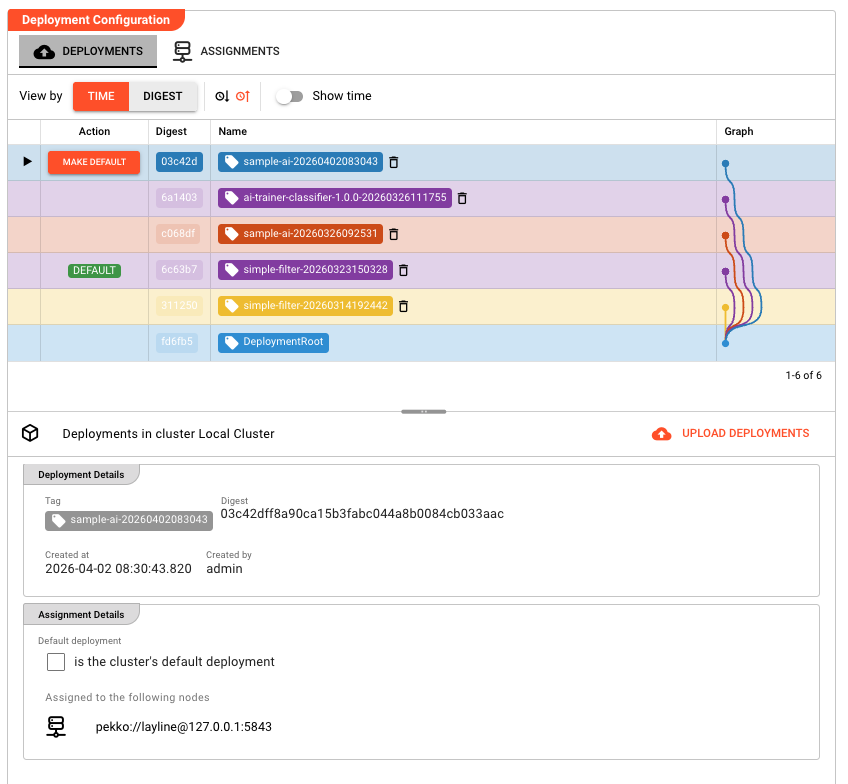
The table columns include:
| Column | Description |
|---|---|
| Action | Indicates whether a deployment is the cluster default (DEFAULT badge), or a Make default button for the selected row |
| Digest | Short digest label for the deployment. A DUP badge appears if the deployment is identical to a previous one |
| Created | Timestamp when the deployment was created (toggleable via Show time) |
| Name | The deployment tag name. Select a row to view its details in the panel below |
| Graph | Visualization showing how this deployment relates to others in the hierarchy |
At the top of the table, you can switch the view mode:
- View by time — Displays deployments in chronological order, with ascending/descending sort options
- View by digest — Groups deployments by their digest to identify identical or related deployments
Making a Deployment Active
The primary action in the Deployments tab is to make a specific deployment the default for the cluster. Clicking Make default on a selected row immediately activates that deployment across all nodes that do not have a more specific node or role assignment.
There is always one special tag called DeploymentRoot. This is the zero deployment — it contains no workflows and means that no deployment runs on the cluster. Making DeploymentRoot the default effectively shuts down all processing. DeploymentRoot is always present and cannot be deleted.
Deleting Deployments
Deployments that can be removed display a delete (trash) icon next to their name. Click the icon to remove the tag from the cluster. Note that you cannot delete the currently active default deployment, nor can you delete DeploymentRoot.
Deployment Details Panel
When you select a deployment from the table, the bottom panel shows its details:
- Tag — The selected deployment's name
- Other tags for this digest — Any alternate tags pointing to the same deployment content
- Digest — The full deployment digest
- Description — Deployment description (if provided)
- Created at / Created by — Timestamp and user who created the deployment
- Assignment Details — Whether this is the default deployment and which nodes it is explicitly assigned to
The bottom panel also provides the Upload Deployments button for adding new deployments to the cluster.
Assignments Tab
The Assignments tab shows how deployments are assigned to Reactive Engine nodes and lets you configure assignment rules.
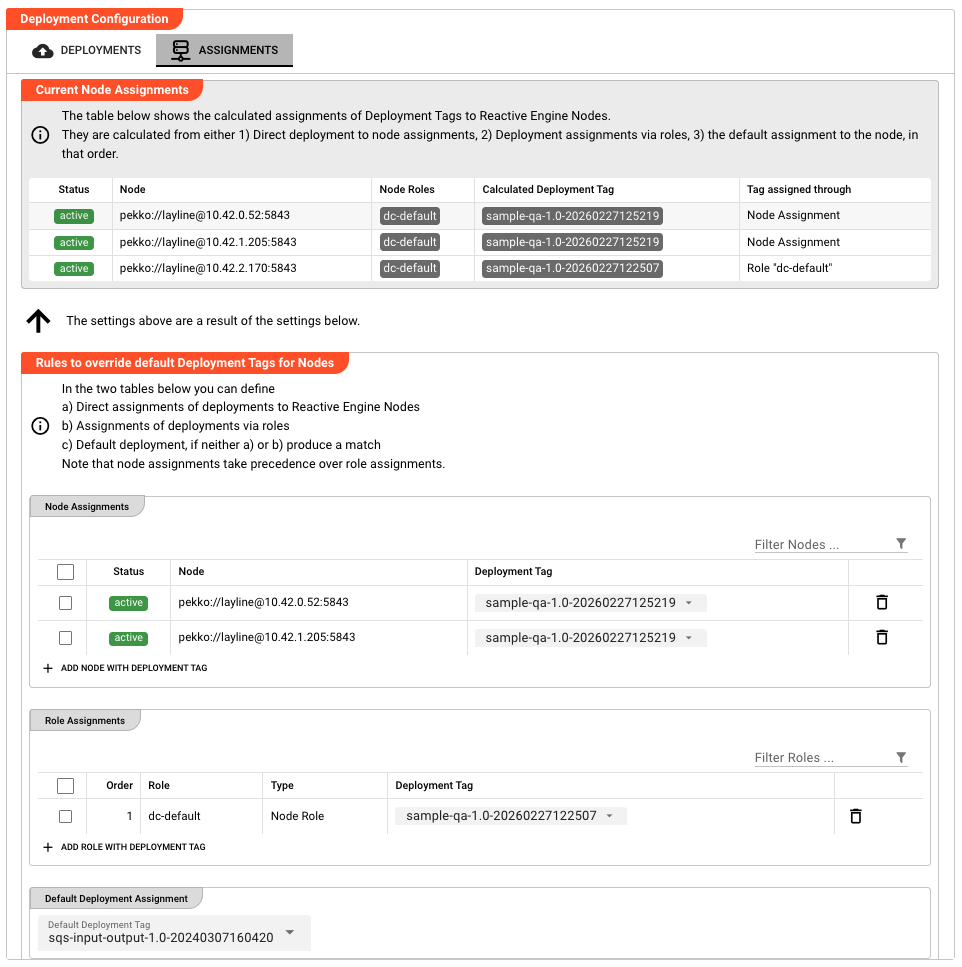
A single Reactive Engine node can only run one deployment at a time. It is not possible for an engine to execute two or more deployments simultaneously.
Current Node Assignments
The top section displays a table showing the calculated deployment tag for each node in the cluster:
| Column | Description |
|---|---|
| Status | Whether the node is active (green) or inactive (red) |
| Node | The cluster node address |
| Node Roles | Roles assigned to this node (e.g., "dc-default") |
| Calculated Deployment Tag | The deployment tag currently assigned to this node |
| Tag assigned through | Which rule determined this assignment (Node Assignment, Role, or default) |
The assignments are calculated using the following precedence (highest to lowest):
- Node Assignment — A deployment explicitly assigned to a specific node
- Role Assignment — A deployment assigned to a role that the node has
- Default Assignment — The fallback deployment used when no other rule matches
Assignment Rules
Below the Current Node Assignments table, an arrow indicates that the calculated assignments above are a result of the rules configured below. The Rules to override default Deployment Tags for Nodes section contains three configuration areas:
Direct Node Assignments
Assign specific deployments to individual nodes. These take highest precedence and override both role and default assignments.
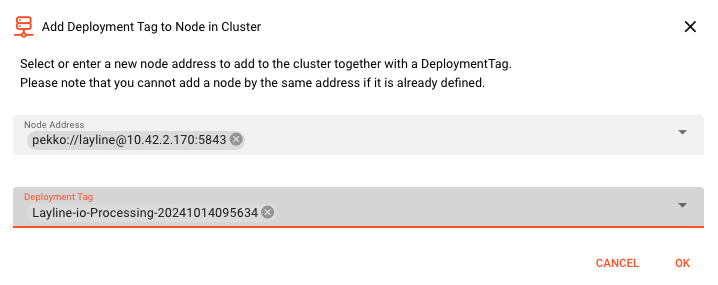
Click Add Node Assignment to open a dialog where you select the node address and the deployment tag to assign.
Role Assignments
Assign deployments to node roles. Any node with that role will receive the assigned deployment unless a direct node assignment overrides it.
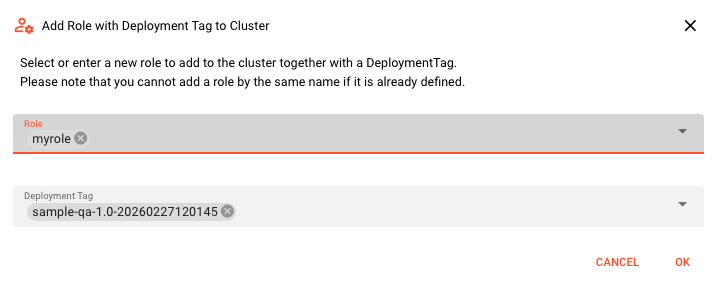
Click Add Role Assignment to open a dialog where you select the role and the deployment tag to assign.
Default Assignment
Set the fallback deployment tag that applies to all nodes not matched by either a direct node assignment or a role assignment.
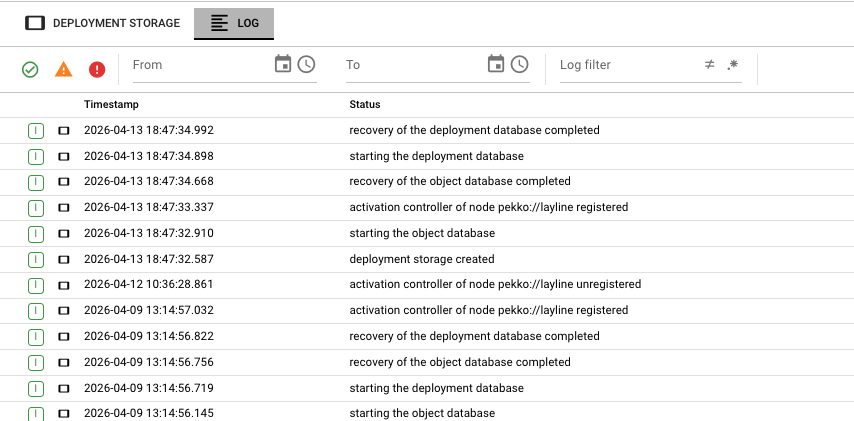
Log Tab
The Log tab displays real-time logs from the deployment-storage component. This is useful for:
- Troubleshooting deployment upload issues
- Monitoring deployment activation and deactivation
- Debugging assignment-related problems
Common Tasks
Setting the Default Deployment
The most common task is to make a deployment the cluster default so that all engines run it.
- Go to the Deployments tab
- Select the deployment you want to activate
- Click Make default
- The deployment becomes active immediately on all nodes without a more specific assignment
For simpler setups (single-node or single-deployment clusters), using the default assignment is usually sufficient. Direct node assignments and role assignments are intended for more sophisticated multi-node clusters that need to run multiple deployments in parallel.
Uploading a New Deployment
New deployments are not created directly in Deployment Storage. They are generated in the Project → Deployments tab by using the Write to file feature on one of the deployment assets:
- Deployment Composition
- Engine Configuration
- Scheduler Setting
- Tag Setting
The generated file is in JSON format.
To upload it to the cluster:
- In the Deployments tab, click the Upload Deployments button in the bottom panel
- Select or drag-and-drop the JSON deployment file
- The deployment will be uploaded and added to the deployment table
- Once uploaded, the deployment can be made the default or assigned to specific nodes
Assigning a Deployment to a Node
- Go to the Assignments tab
- In the Node Assignments section, click Add Node Assignment
- Select the node and the deployment tag to assign
- The assignment takes effect immediately
Assigning a Deployment via Role
- Go to the Assignments tab
- In the Role Assignments section, click Add Role Assignment
- Select the role and the deployment tag
- All nodes with that role will receive this deployment (unless they have a direct node assignment)
Setting the Fallback Deployment
- Go to the Assignments tab
- In the Default Assignment section, select the deployment tag to use as fallback
- This deployment will be used for any node not matched by node or role assignments
See Also
- Cluster Login — Connect to a cluster to access Deployment Storage
- Engine Deployment — Asset for configuring deployment settings
- Engine State — Monitor running engines and their deployments