Engine Configuration
Defines which Workflows, Environment Assets, Secret Assets, and Extensions are deployed to a specific Reactive Engine in a Cluster.
Purpose
An Engine Configuration Asset defines a complete deployment unit — it specifies which Workflows run on a particular engine, what Environment Assets provide configuration values, what Secret Assets supply sensitive data, and what Extensions add functionality. When you deploy an Engine Configuration to a Reactive Cluster, layline.io creates or updates a running engine instance with all the specified assets.
Multiple Engine Configurations can target the same Cluster, allowing you to run different sets of workflows on different engines within the same infrastructure. Each Engine Configuration has a unique Tag that identifies it within the Cluster. Once transferred, it translates to a Deployment on the Reactive Cluster. You can view in the Clusters Deployment Storage.
Engine Configurations support inheritance — you can create a base configuration and derive child configurations that override specific settings. This is useful for maintaining environment-specific variants (development, staging, production) that share common workflow and asset selections.
Prerequisites
Before creating an Engine Configuration Asset:
- Workflows must exist in the Project — these are the processing logic you want to deploy
- Environment Assets (optional but recommended) — define environment-specific configuration values
- Secret Assets (optional) — store sensitive data like passwords and API keys
- Extension Assets (optional) — add capabilities like Prometheus metrics export
- Clusters must be configured if deploying to a Reactive Cluster
Configuration
Deploy to Cluster
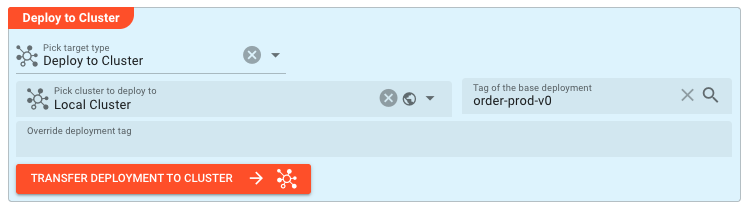
This section configures where and how the deployment is executed.
Pick target type — Select the deployment destination:
- Deploy to Cluster — Deploy directly to a running Reactive Cluster
- Write to File — Export the deployment as a file for offline transfer
When Deploy to Cluster is selected:
Pick cluster to deploy to — Select the target Cluster from the dropdown. Clusters are grouped into:
- Global clusters — Available across all projects
- Project specific clusters — Defined within the current project
Tag of the base deployment — (Optional) Specify an existing deployment tag to use as a base. This enables incremental/differential deployment against a previous deployment.
When a base deployment tag is specified, the entire Engine Configuration is transferred to the Cluster. The reactive cluster then compares the incoming configuration against the existing deployment with the specified base tag and determines what has changed. Only the differences are applied to create the new deployment, but the complete configuration is always transferred to ensure consistency.
Override deployment tag — (Optional) Override the deployment tag that will be assigned in the Cluster. If not specified, the Tag defined in the Engine Configuration is used.
Name & Description
-
Name: Name of the Asset. Spaces are not allowed in the name. -
Description: Enter a description.
Inheritance chain of this Asset — If this Asset extends another, the inheritance chain is shown here. Click to navigate to any parent Asset in the chain.
Asset Usage: If the Asset is used by other Assets, the Asset Usage box shows how many times this Asset is used and which parts are referencing it. Otherwise it is not shown. Click to expand and then click to follow, if any.
Required Roles

In case you are deploying to a Cluster which is running (a) Reactive Engine Nodes which have (b) specific Roles
configured, then you can restrict use of this Asset to those Nodes with matching
roles.
If you want this restriction, then enter the names of the Required Roles here. Otherwise, leave empty to match all
Nodes (no restriction).
Tag

Tag (required) — A unique identifier for this Engine Configuration within the target Cluster. The Tag appears in the Cluster's deployment list and is used to reference this specific engine instance. If a deployment with this Tag already exists in the Cluster, it will be updated.
Tag description — An optional description of what this Engine Configuration represents (e.g., "Production Order Processing Engine").
Assets to deploy
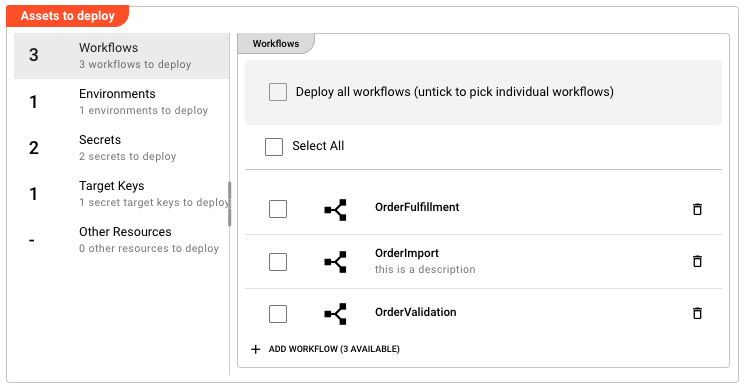
This section defines which assets are included in the deployment. The left panel lists asset categories with counts; clicking a category shows its configuration on the right.
Workflows
Deploy all workflows — When enabled, all Workflows that are part of the current Project are included in the deployment. When disabled, you select individual Workflows from a list.
When Deploy all workflows is disabled:
- Available Workflows are listed with their names and descriptions
- Click Add Workflow to select from unassigned Workflows
- Each added Workflow appears in the list with delete/reset controls
- Inherited Workflows (from a parent Engine Configuration) appear with inherited styling
Environments
Environment Assets provide configuration values (key-value pairs) that are injected at runtime. Multiple Environment Assets can be selected — their variables are merged, with later assets overriding earlier ones in case of key collisions.
- Click Add Environment to select from available Environment Assets
- Each Environment Asset displays its name and description
- Inherited Environment Assets can be removed or reset to parent values
For details on how Environment Assets work, see Environment Asset.
Secrets
Secret Assets contain sensitive data like passwords, API keys, and tokens. They are encrypted and decrypted at deployment time using the target engine's keys.
- Click Add Secret to select from available Secret Assets
For details on how Secret Assets work, see Secret Asset.
Extensions
Extension Assets add capabilities to the engine, such as:
- Prometheus Extension — Export metrics to Prometheus for monitoring
- AWS Extension — Enable AWS service integrations
- And other custom extensions
Extensions are loaded by the engine at startup and provide additional functionality to Workflows.
Target Keys
Target Keys are public encryption keys used to encrypt Secrets for specific target engines. When deploying to a Cluster, Secrets are encrypted with the target engine's public key so they can only be decrypted by that engine.
- Click Add Encryption Target Key to select from available public keys
- Each key shows its name and fingerprint
- Multiple target keys can be configured for multi-engine deployments
- Inherited keys can be removed or reset to parent values
Other settings

Deployment timeout — The maximum time (in seconds) to wait for the deployment to complete. If the deployment exceeds this timeout, it is marked as failed. Default: 120 seconds.
Behavior
Deployment Execution
When you execute a deployment:
- Validation — All referenced assets are checked for existence and integrity
- Packaging — Workflows, Environments, Secrets, and Extensions are packaged into a deployment bundle
- Transfer — The bundle is transferred to the target Cluster (or written to file). If deploying to a Cluster, the bundle is sent to the Cluster's API endpoint. The cluster then distributes it to the appropriate engine nodes based on the deployment configuration and tags. Prior to transfer the dployment is checked for potential errors. If any issues are detected, the deployment is halted and an error message is displayed.
- Activation — The deployment must be manually activated in the Cluster's operations UI.
- Startup — The engine loads Workflows, resolves Environment variables, and decrypts Secrets
Environment Variable Resolution
At runtime, Environment variables are resolved in the following order:
- System environment variables (on the engine host)
- Variables from Environment Assets (in the order they appear in the Engine Configuration)
- Secret values (injected as variables for their associated keys)
Later values override earlier values. Use the ${lay:variableName} macro in Workflow configurations to reference these variables.
Example
A production Engine Configuration for an order processing system:
Tag: order-prod-v1
Tag description: Production order processing engine - main instance
Assets to deploy:
| Asset Type | Selection |
|---|---|
| Workflows | OrderImport, OrderValidation, OrderFulfillment |
| Environments | Production-Env |
| Secrets | DB-Passwords, API-Keys |
| Extensions | Prometheus-Metrics |
| Target Keys | prod-engine-key-01 |
Other settings:
| Setting | Value |
|---|---|
| Deployment timeout | 180 seconds |
When deployed to the Production-Cluster, this creates an engine instance tagged order-prod-v1 that runs the three Workflows, uses production environment variables, decrypts secrets using the target key, and exports metrics to Prometheus.
See Also
- Environment — Store configuration values for different deployment targets
- Secret — Manage sensitive data for workflows
- Tag Settings — Configure filtering tags for engines
- ReactiveCluster — Cluster configuration for coordinating engines
- Deployment Composition — Group multiple deployment assets