Folders
Folders provide organization within Categories, helping you group related Elements together.
What Are Folders?
Folders exist within Categories and provide a way to organize Elements. While Categories separate Assets from Messages, Folders let you group related Elements by project, environment, or any criteria that makes sense for your team.
Folder Hierarchy
The Shelf supports a simple hierarchy:
Category
└── Folder
    └── Elements (Assets or Messages)
Folders exist only at one level — there are no sub-folders. If you need additional organization, use naming conventions (e.g., "Production-DB", "Staging-DB") or create more Folders.
Creating a Folder
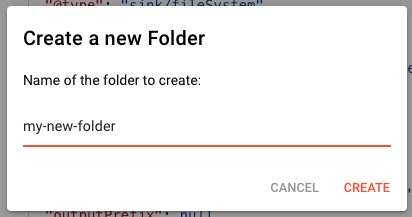
To create a new Folder:
- Navigate to the desired Category (Assets or Messages)
- Click the New Folder button (or right-click in the folder area)
- Enter a Name for the Folder
- Optionally add a Description
- Click Create
Folder Naming Guidelines
- Use clear, descriptive names
- Include environment indicators when relevant (Prod, Staging, Dev)
- Use consistent naming patterns
- Avoid special characters that might cause issues
Common naming patterns:
| Pattern | Example | Use Case |
|---|---|---|
| By Environment | Production, Staging, Development | Environment-specific Assets |
| By Project | Invoice-Processing, Data-Sync | Project-specific Elements |
| By Type | Databases, APIs, File-Systems | Type grouping within Category |
| By Team | Finance, Engineering | Team ownership |
Managing Folders
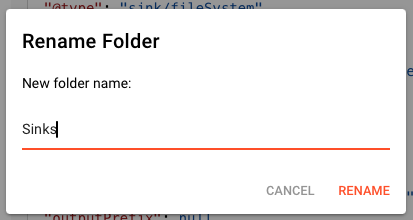
Renaming a Folder
- Navigate to the Category containing the Folder
- Right-click the Folder or click the menu
- Select Rename
- Enter the new name
- Confirm to save
Deleting a Folder
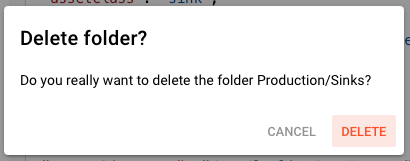
Deleting a Folder removes all Elements within it. This action cannot be undone.
- Right-click the Folder
- Select Delete
- Confirm the deletion
All Elements in the Folder are permanently removed from the Shelf.
Folder Organization Patterns
Environment-Based
Organize by deployment environment:
Assets/
├── Production/
│   ├── Primary-DB-Connection
│   ├── API-Gateway-Config
│   └── Backup-Service
├── Staging/
│   ├── Staging-DB-Connection
│   └── Test-API-Config
└── Development/
    ├── Local-DB-Connection
    └── Mock-Service-Config
Project-Based
Organize by project or application:
Messages/
├── Invoice-System/
│   ├── Invoice-Format
│   ├── Customer-Schema
│   └── Payment-Types
├── HR-Platform/
│   ├── Employee-Schema
│   └── Timesheet-Format
└── Common/
    ├── Error-Response-Format
    └── Standard-Headers
Type-Based
Organize by specific type:
Assets/
├── Databases/
│   ├── PostgreSQL-Prod
│   ├── MySQL-Analytics
│   └── MongoDB-Logs
├── Cloud-Storage/
│   ├── S3-Primary-Config
│   ├── GCS-Archive-Config
│   └── Azure-Backup-Config
└── Message-Queues/
    ├── Kafka-Main-Config
    └── RabbitMQ-Events-Config
Folder Contents
Each Folder displays:
- Name — The Folder name
- Description — Optional explanatory text
- Element Count — Number of Elements in the Folder
- Last Modified — Date of most recent change
Best Practices
- Be consistent — Use the same organizational pattern across Categories
- Keep it flat — Aim for 3-10 Folders per Category; create more Categories if needed (though only Assets and Messages are available)
- Use clear names — Folder names should indicate contents at a glance
- Add descriptions — Help teammates understand Folder purpose
- Review regularly — Merge empty or duplicate Folders
- Don't over-organize — Too many Folders make browsing harder
See Also
- Categories — Top-level Shelf organization
- Elements — The Assets and Messages stored in Folders
- Shelf Overview — Introduction to the Shelf concept