Navigation
Efficiently find and use Shelf content with browsing and search.
Shelf Interface Layout
The Shelf interface is organized into three main areas:
- Categories Sidebar (left) — Lists the top-level Categories (Assets, Messages)
- Folders List (middle) — Shows Folders within the selected Category
- Elements Grid (right) — Displays Elements within the selected Folder or Category
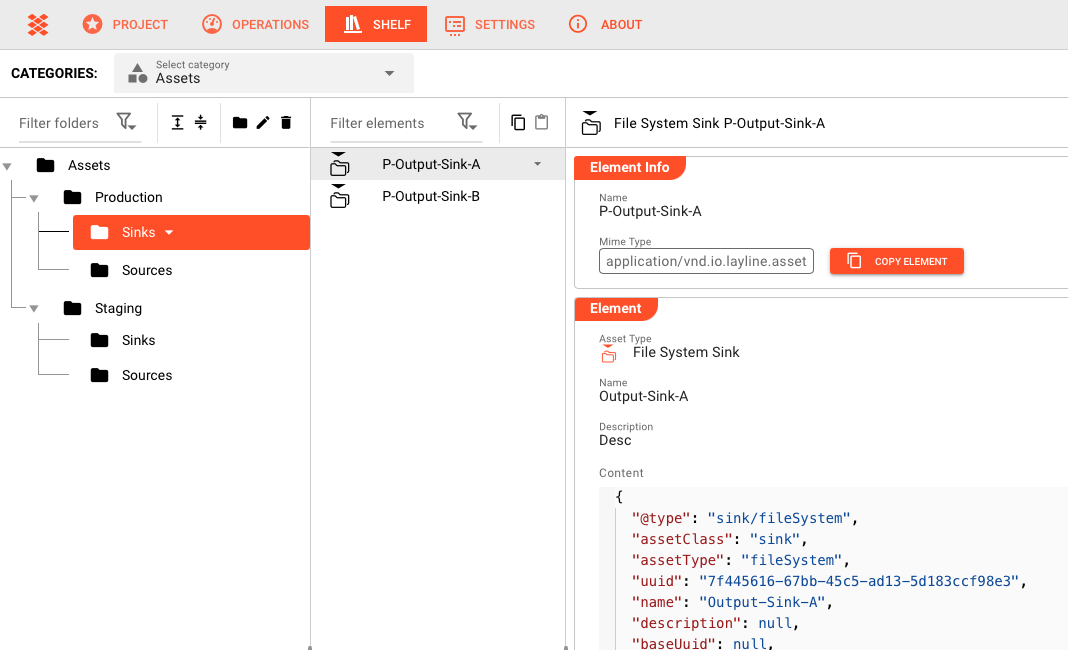
Browsing
Category Navigation
The left sidebar lists the two Categories:
- Assets — Reusable Asset configurations
- Messages — Data format definitions
Click a Category to see its Folders in the middle panel.
Folder Navigation
The middle panel shows Folders within the selected Category:
- Click a Folder to see its Elements
- Click All to see Elements across all Folders in the Category
- Folder names and Element counts help you find what you need
Element Grid
The right panel displays Elements:
- Grid view — Visual cards with name and type
- List view — Compact rows (if available)
- Click an Element to open its detail view
Search
Using Search
The search bar at the top of the Shelf helps you find Elements:
- Click the search bar
- Type your search term
- Results filter as you type
- Click a result to open its detail view
Search Scope
Search looks for matches in:
- Element names
- Element descriptions (if indexed)
- Asset type names
Finding Elements
Browse by Category
If you know what type of Element you need:
- Click Assets or Messages in the sidebar
- Browse the Folders
- Click a Folder to see its Elements
Search by Name
If you know the name:
- Use the search bar
- Type part of the Element name
- Click the result
Recent Elements
The Shelf may track recently viewed Elements:
- Look for a Recent section (if available)
- See last viewed Elements
- Click to jump directly to Element details
Using Elements
Copying from the Shelf
Once you find an Element:
- Click the Element to view its details
- Click Copy (or use the copy action)
- Navigate to where you want to use it (Project Asset Editor, Engine State, etc.)
- Paste the Element
Checking Dependencies
Before copying an Asset:
- Open the Element detail view
- Review the configuration
- Note any referenced Assets or Formats
- Ensure those dependencies exist in your target Project
Detail View
Opening Elements
Open an Element detail view by:
- Clicking an Element card in the grid
- Clicking an Element name in search results
Detail View Contents
The detail view shows:
| Section | Content |
|---|---|
| Overview | Name, type, description, metadata |
| Configuration | Full settings of the Asset or Message |
Closing Detail View
Close the detail view by:
- Clicking the X button
- Clicking outside the panel
- Selecting a different Element
Best Practices
- Use Categories — Start with Assets or Messages based on what you need
- Search first — Faster than browsing for specific named Elements
- Organize Folders well — Good Folder names make browsing efficient
- Check before copying — Review the configuration and dependencies
- Use recent — Often faster for Elements you use frequently
See Also
- Categories — Top-level organization
- Folders — Secondary organization
- Elements — Working with Shelf Elements
- Shelf Overview — Introduction to the Shelf concept