Scheduler Settings
Defines per-workflow resource limits and instance constraints for controlling how workflows are scheduled across cluster nodes.
Purpose
Scheduler Settings control the resource allocation and scheduling behavior for workflows within a deployment. While the Engine Configuration defines which workflows run, Scheduler Settings define how many instances run and where they can run — giving you fine-grained control over resource utilization and workload distribution.
In a clustered environment, multiple instances of the same workflow may run concurrently across different nodes for high availability and horizontal scaling. Scheduler Settings let you define:
- How many instances of each workflow should be running
- Default node constraints — minimum and maximum instances per node
- Role-based limits — restrict workflows to nodes with specific roles
- Node-specific limits — constrain workflows to specific cluster nodes
This is particularly important in production environments where you need to ensure workflows don't overwhelm available resources, or where certain workflows must run on specific hardware (GPU nodes, high-memory nodes, etc.).
Scheduler Settings support inheritance, allowing you to define base scheduling policies and override them for specific environments. For example, a production deployment might enforce strict limits, while a development deployment uses more relaxed settings.
Prerequisites
Before creating Scheduler Settings, you should have:
- Workflows defined in your project (these are what you'll be scheduling)
- An understanding of your cluster topology if using node or role limits
- A parent Scheduler Settings asset (optional) if you want to inherit base scheduling policies
Configuration
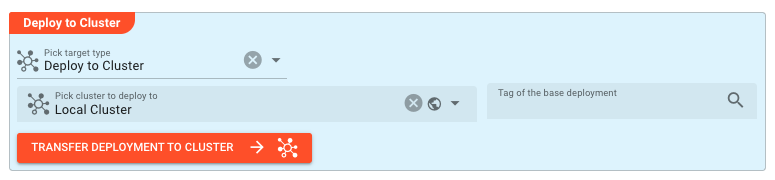
Deploy to Target
This section establishes the inheritance chain for the Scheduler Settings. Like other deployment assets, Scheduler Settings can extend a parent configuration, inheriting all its workflow limits while allowing selective overrides.
Tag of the base deployment — Select a parent Scheduler Settings asset to chain onto. Tags work differently from asset inheritance: when you base one deployment on another using a tag, deployments are chained together in sequence. At runtime, the cluster investigates how deployments are chained via tags and calculates the final deployment as a combination of all linked deployments. A later deployment in the chain always supersedes functionality from an earlier deployment — settings in the child override those in the parent. This enables layered configuration patterns where you define base policies and selectively override them for specific environments.
Name & Description
-
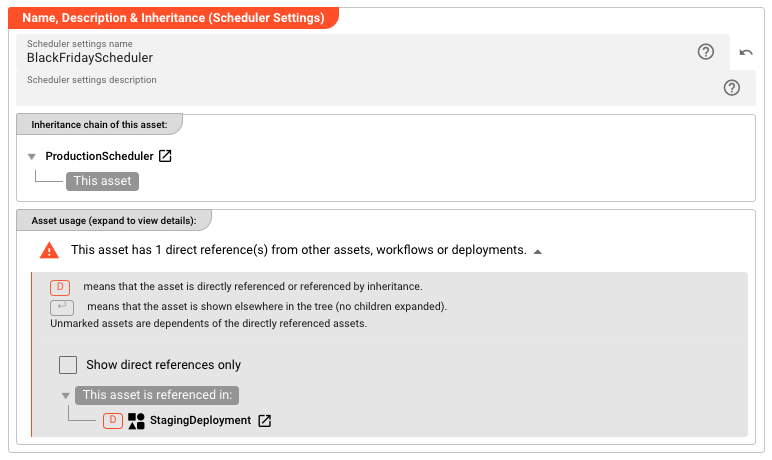
Name: Name of the Asset. Spaces are not allowed in the name. -
Description: Enter a description.
Inheritance chain of this Asset — If this Asset extends another, the inheritance chain is shown here. Click to navigate to any parent Asset in the chain.
Asset Usage: If the Asset is used by other Assets, the Asset Usage box shows how many times this Asset is used and which parts are referencing it. Otherwise it is not shown. Click to expand and then click to follow, if any.
Workflows and Limits
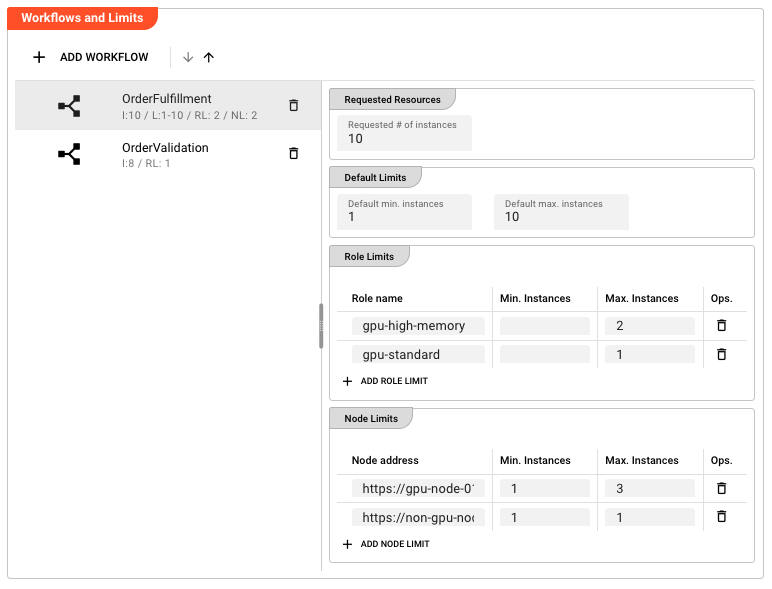
This is the core configuration section where you define resource constraints for each workflow. The interface presents a split-pane view: the left side lists configured workflows, and the right side shows the detailed limits for the selected workflow.
Adding Workflows
Click Add Workflow to select from available workflows in your project. Each workflow can only be configured once per Scheduler Settings asset — attempting to add a workflow that's already configured will update the existing entry.
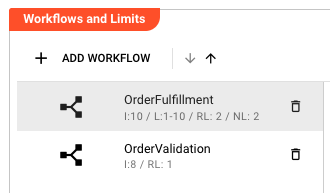
Workflows are displayed in a scrollable list with indicators showing:
- I:N — Requested number of instances is set to N
- L:min-max — Default node limits are configured (min to max instances per node)
- RL:N — N role limits are configured
- NL:N — N node limits are configured
Removing Workflows
Click on a workflow in the list to select it, then click the delete icon. You'll be prompted to confirm the deletion. Deleting a workflow from Scheduler Settings removes all its limits — the workflow will fall back to default scheduling behavior (unlimited instances, no node constraints).
Requested Resources
Requested # of instances — The total number of workflow instances that should run across the entire cluster. This is the target count the scheduler attempts to maintain.
For example, setting this to 3 means the scheduler will attempt to run exactly 3 instances of this workflow distributed across available nodes. If a node fails and an instance is lost, the scheduler will spin up a replacement on another node to maintain the target count.
Default: null (no specific target — you must manually configure the number of instances on the operation side)
Default Limits
Default limits apply to all nodes unless overridden by specific role or node limits. These define the baseline constraints for how many instances of this workflow can run on a single node.
Default min. instances — The minimum number of instances that must run on each node that hosts this workflow. This is useful when you want to ensure baseline availability even during low-load periods.
Default max. instances — The maximum number of workflow instances allowed across all nodes in the cluster. This sets an upper bound on the total instances of this workflow that can run simultaneously, regardless of how they're distributed across nodes.
Both values are optional. If not specified, the scheduler uses its internal defaults (typically min: 0, max: unlimited).
Role Limits
Role limits restrict workflow execution to nodes that have been assigned specific roles in the cluster. This is useful when workflows need specific hardware capabilities (databases, GPUs, high-memory nodes) or when you want to isolate certain workloads.
Role limits are configured as a table with one entry per role constraint:
| Column | Description |
|---|---|
| Role name | The role identifier as configured in the cluster node configuration (free text) |
| Min. Instances | Minimum instances that must run on nodes with this role |
| Max. Instances | Maximum instances allowed on nodes with this role |
Click Add Role Limit to create a new constraint. For example:
- Role name:
high-memory, Max. Instances:2— Limits this workflow to at most 2 instances on high-memory nodes - Role name:
gpu, Min. Instances:1— Ensures at least 1 instance runs on GPU-equipped nodes
If multiple role limits are specified, a node only needs to match one role to satisfy the constraints. The most specific applicable limit is used.
Node Limits
Node limits provide the finest level of control, allowing you to specify constraints for individual cluster nodes by their network address. This is typically used for:
- Pinning workflows to specific machines
- Excluding problematic nodes
- Balancing load across known hardware configurations
Node limits use the same table structure as Role Limits:
| Column | Description |
|---|---|
| Node address | The network address or hostname of the cluster node (free text) |
| Min. Instances | Minimum instances that must run on this specific node |
| Max. Instances | Maximum instances allowed on this specific node |
Click Add Node Limit to create a new constraint. Examples:
- Node address:
10.0.1.50, Max. Instances:1— At most 1 instance on this specific node - Node address:
worker-node-03, Min. Instances:1, Max. Instances:1— Exactly 1 instance pinned to this node
Node limits take precedence over role limits, which take precedence over default limits.
Behavior
Scheduling Hierarchy
When the scheduler decides where to place workflow instances, it evaluates limits in this order (most specific to least specific):
- Node Limits — If a node limit exists for the specific node being considered, those constraints apply
- Role Limits — If the node has roles assigned and role limits match, those constraints apply
- Default Limits — Fall back to the default min/max instances per node
If none of these are configured, the scheduler uses its internal defaults and distributes instances based on current cluster load.
Inheritance Behavior
Scheduler Settings fully support the layline.io inheritance model:
- When a parent Scheduler Settings is specified, all workflow configurations are inherited
- Inherited workflows appear in the list with visual indicators (typically italicized or marked)
- You can override any inherited value by simply changing it — the system tracks child vs. parent values
- Click Reset to Parent on any inherited workflow or limit to discard your override and revert to the inherited value
- You can add workflows not present in the parent, creating child-specific scheduling policies
This enables powerful patterns like:
- A base
ProductionSchedulerwith conservative limits for all production workflows - A
PeakLoadSchedulerinheriting from it but increasing instance counts for specific high-volume workflows - A
MaintenanceSchedulerinheriting but pinning certain workflows to maintenance nodes
Instance Distribution Algorithm
Given the configured limits, the scheduler distributes instances using this logic:
- Calculate total requested instances (from Requested # of instances)
- For each candidate node, determine the allowed range:
- Start with Default Limits (or 0/unlimited if not set)
- Apply matching Role Limits if any
- Apply matching Node Limits if any
- Place instances on nodes, respecting per-node maximums
- If total requested instances cannot be satisfied given the constraints, the scheduler will:
- Run as many as possible within constraints
- Log a warning about the shortfall
- Retry placement as nodes become available
Dynamic Rebalancing
When Scheduler Settings are updated and redeployed:
- Changes take effect immediately on the next scheduling decision
- If limits are tightened (max decreased), excess instances may be terminated
- If limits are relaxed (max increased or min decreased), new instances may be started
- If a workflow is removed from Scheduler Settings entirely, its instances continue running but are no longer managed by the scheduler (they won't be restarted if they fail)
Example
Basic scheduler for a production workflow:
| Field | Value |
|---|---|
| Name | ProductionScheduler |
| Workflow | OrderProcessing |
| Requested # of instances | 5 |
| Default min. instances | 1 |
| Default max. instances | 2 |
This ensures exactly 5 instances of OrderProcessing run across the cluster, with no more than 2 per node (so at least 3 nodes are utilized) and at least 1 per node that runs it.
Scheduler with role-based GPU constraints:
| Field | Value |
|---|---|
| Name | MLInferenceScheduler |
| Workflow | ImageClassifier |
| Requested # of instances | 4 |
| Default max. instances | 1 |
| Role Limit 1 | Role: gpu-high-memory, Max: 2 |
| Role Limit 2 | Role: gpu-standard, Max: 1 |
This distributes 4 instances across GPU nodes, allowing up to 2 on high-memory GPU nodes but only 1 on standard GPU nodes.
Inherited scheduler with overrides:
Parent ProductionScheduler:
- Workflow:
DataPipeline, Requested:10, Default Max:3
Child BlackFridayScheduler (inherits from ProductionScheduler):
- Same workflow inherited, but override Requested to
50and Default Max to5 - Add new workflow:
FlashSaleProcessor, Requested:20
The child inherits the DataPipeline configuration but increases capacity for high-load events, while adding scheduling for a new workflow not in the parent.
See Also
- Deployment Composition — Combines Scheduler Settings with other deployment assets
- Engine Configuration — Defines which workflows are part of the deployment
- Cluster — The target infrastructure where scheduled workflows run
- Workflow — The units being scheduled