Sink Virtual File System
Purpose
Writes messages to a Virtual File System (VFS). The VFS abstraction allows the same Sink to write to local filesystems, SMB shares, NFS mounts, or any backend supported by the configured VFS Connection. Files are first written to a temporary directory, then moved to the output directory upon successful completion.
This Asset can be used by:
| Asset type | Link |
|---|---|
| Output Processors | Stream Output Processor |
Prerequisite
You need:
Configuration
Name & Description
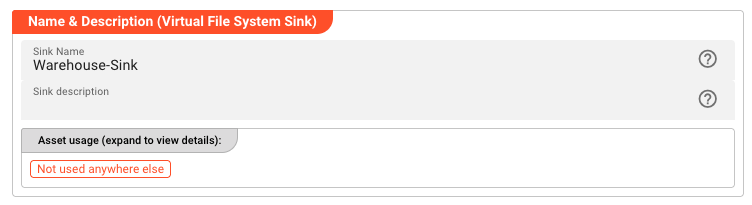
Name — Unique name for this asset within the project. Spaces are not allowed.
Description — Optional description of what this sink is used for.
Asset Usage — Shows how many times this asset is referenced by other assets, workflows, or deployments. Expand to see the full list.
Required Roles

In case you are deploying to a Cluster with Reactive Engine Nodes that have specific Roles configured, you can restrict use of this Asset to Nodes with matching roles. Leave empty to match all Nodes.
Throttling & Failure Handling

Throttling
The following parameters allow controlling the maximum number of new stream creations per given time period.
Max. new streams — Maximum number of streams this sink is supposed to open or process within a given time period.
Per — Time interval unit for the provided Max. new streams number.
Backoff Failure Handling
These parameters define the backoff timing intervals in case of failures. Based on these parameters, the system will step by step throttle down the processing cycle based on the time boundaries of min. failure backoff and max. failure backoff.
Min. failure backoff — The minimum backoff time before the next sink item processing (in case of failure scenario).
Max. failure backoff — The maximum backoff time before the next sink item processing (in case of failure scenario).
Based on these values the next processing will be delayed: starting with the min. failure backoff time interval the waiting time will be increased step by step up to the max. failure backoff.
Reset after number of successful streams — The backoff failure throttling reset trigger based on a count of successful streams.
Reset after time without failure streams — Time-based reset for backoff failure throttling. Whatever comes first will reset the failure scenario throttling after the system is back to successful stream processing.
Virtual File System Settings

Connection — Select the Virtual File System Connection to use for writing files. If no connection exists, create one first.
Directories
The Directories tabbed section defines where files are written during processing and where they end up after completion.
Output Directory
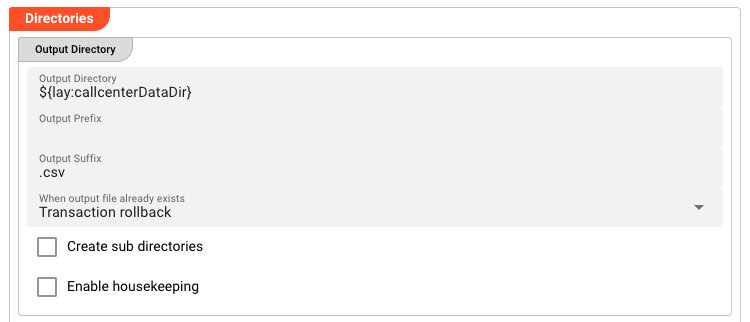
The Output Directory is where the final processed files are written.
Output Directory — Path relative to the connection mount point where output files are written. Example: ${lay:callcenterDataDir}
Output Prefix — Prefix added to the output filename. Optional.
Output Suffix — Suffix added to the output filename. Example: .csv
When output file already exists — Define handling when a file with the same name already exists in the output directory:
- Transaction rollback
- Overwrite
- Append
- Move the existing output file to the archive directory
Create sub directories — When enabled, creates sub-directories as needed within the output path.
Enable housekeeping — When enabled, applies housekeeping rules to output files.
Temporary Directory
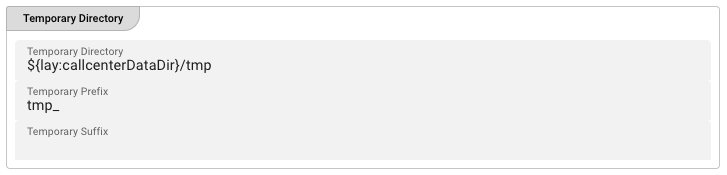
The Temporary Directory is where files are written during processing. Once processing completes successfully, the file is moved to the Output Directory.
Temporary Directory — Path relative to the connection mount point where in-progress files are written. Example: ${lay:callcenterDataDir}/tmp
Temporary Prefix — Prefix added to the filename while in the temporary directory. Example: tmp_
Temporary Suffix — Suffix added to the filename while in the temporary directory. Example: .tmp
Other Settings

Delay post processing steps (move, delete) [ms] — Milliseconds to wait after processing before moving files from the temporary directory to the output directory or deleting them. Useful for connections that need time to settle. Default: 0.
Number of retries for post processing steps — Number of retry attempts for post-processing operations (move, delete) if the first attempt fails. Default: 3.
Archive Directory
The Archive Directory is used when the "Move the existing output file to the archive directory" conflict-handling option is selected in the Output Directory configuration. Files that would otherwise conflict are moved here instead of causing a failure.
Behavior
Files are always written to the Temporary Directory first. On successful processing, they are moved (not copied) to the Output Directory. If post-processing fails after the configured number of retries, the file remains in the Temporary Directory and the error is logged.
Temporary files that remain in the Temporary Directory after no active processing is underway are likely residue from a previous crash and should be investigated.
See Also
- VFS Source — Read files from a VFS mount
- VFS Connection — VFS connection configuration
- SMB Sink — Write files to SMB/CIFS shares
Please note, that the creation of the online documentation is Work-In-Progress. It is constantly being updated. should you have questions or suggestions, please don't hesitate to contact us at support [at] layline.io .